To A/B test in Elementor, you need three things: two versions of the element you want to test, a way to show each version to half your visitors, and a goal that counts conversions. Elementor's widget-based editor handles the first part beautifully - duplicating a section and tweaking one version takes seconds - and a free plugin handles the rest. This tutorial uses AB Test WP (ours, free, works with Elementor Free and Pro alike), but the structure applies to any class-based testing tool.
Updated July 2026
Key takeaways
- Duplicate the section or widget in Elementor, change one thing in the copy, and keep both versions on the page.
- Create the test, then add each variant's class in Elementor's Advanced tab. No Pro widgets are needed.
- Pick one goal before you launch: a click, a page reached, or a purchase.
- Check the sample size first, run for whole weeks, and read the result once.
What you'll need
- Elementor - Free or Pro both work; nothing in this tutorial needs a Pro widget.
- A testing plugin - the free AB Test WP handles variant assignment, anti-flicker, and result tracking.
- One clear goal - a click, a form page reached, a purchase. Decide it before you build anything.
Step 1 - Decide what to test (one change, one goal)
Write the test as a falsifiable sentence: "Changing the hero headline from X to Y will increase demo bookings." One variable, one metric. Testing a headline and a button and an image at once tells you nothing about which change mattered. If you're new to forming hypotheses and sizing tests, the full WordPress A/B testing guide covers that groundwork - this tutorial focuses on the Elementor-specific mechanics.
Step 2 - Duplicate the section or widget in Elementor
Open the page in the Elementor editor, right-click the handle of the section (or the individual widget) you're testing, and choose Duplicate. You now have the original and an identical copy stacked on the page. Edit the copy into your challenger: the new headline, the different button text, the rearranged layout. Keep both versions visible in the editor for now - the plugin will handle showing each visitor only one of them.
Step 3 - Create the test and get your CSS classes
In your WordPress dashboard, create a new test in AB Test WP and choose an element test. The plugin generates one CSS class per variant - something like abtest-hero-default and abtest-hero-v1. (Prefer to skip this step entirely? The point-and-click editor can mark variants for you on the live page - but the class method below is worth knowing, because it works for any layout Elementor can build.)
Step 4 - Add each class in Elementor's Advanced tab
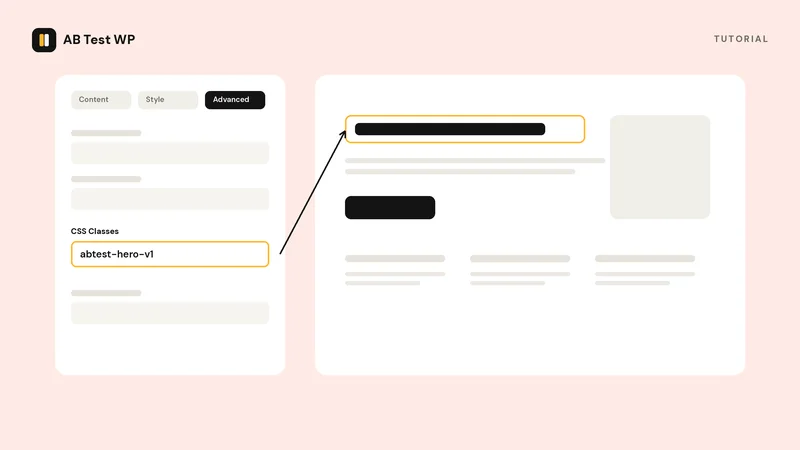
Back in Elementor: edit the original section or widget, open the Advanced tab, and paste the first class into the CSS Classes field. Then do the same on the duplicate with the second class. That field is available on every element in Elementor Free - no Pro required. Two details that save headaches: enter the class without a leading dot, and put it on the outermost element you duplicated (the section, not a widget inside it) so each visitor sees exactly one complete version.
Step 5 - Pick the goal
In the test's settings, choose what counts as a conversion: a page visit (a thank-you or confirmation page), an element click, a link click, a form submission, or a WooCommerce add to cart - all included free. Pick the goal closest to the money: a booked demo beats a scrolled page. Each visitor counts once per test, so repeat clicks don't inflate the numbers.
Step 6 - Check the sample size, then launch
Before you press start, run your current conversion rate and the lift you're hoping for through the sample-size calculator (the same planner is built into the plugin). It tells you how many visitors - and roughly how many days - the test needs before the result means anything. Then launch, and resist the urge to act on day-two numbers: run to the planned sample, in whole weeks, so weekday and weekend traffic are both represented.
Testing a whole page redesign instead
If your challenger isn't one section but an entirely different page - a new layout, a new offer - duplicate the whole page in Elementor, publish it at its own URL, and run a URL split test instead of an element test. The plugin splits traffic between the two URLs with an SEO-safe redirect and keeps each visitor on the version they first saw. The split-URL testing guide walks through that setup, including the canonical settings that keep Google happy.
Elementor-specific tips
- Check responsive views. Elementor lets you style per device - after duplicating, flip through desktop, tablet, and mobile previews so your challenger isn't accidentally broken on phones.
- Keep variants comparable in weight. Both versions live in the page's HTML (that's what makes the swap flicker-free), so avoid parking a huge autoplaying video in a variant you might discard.
- Don't restyle mid-test. Editing a live variant muddies the data. The plugin warns you when you change a running test's goal, audience or traffic split, but it cannot see edits you make inside Elementor, so the clean habit is: finish the test, then redesign.
- Caching is fine. Variant assignment happens in the visitor's browser, so the test keeps working behind full-page caching and CDNs - no exclusions to configure. Details on the Elementor setup page.
The whole tutorial in one line
Duplicate the section → edit the copy → Advanced → CSS Classes on each version → pick a goal → size the test → launch and wait for the planned sample. Everything else is discipline.
Ready to run it? The free AB Test WP plugin works with Elementor Free and Pro, tests without cookies or traffic limits, and includes the sample-size planner used above. Get notified at launch.